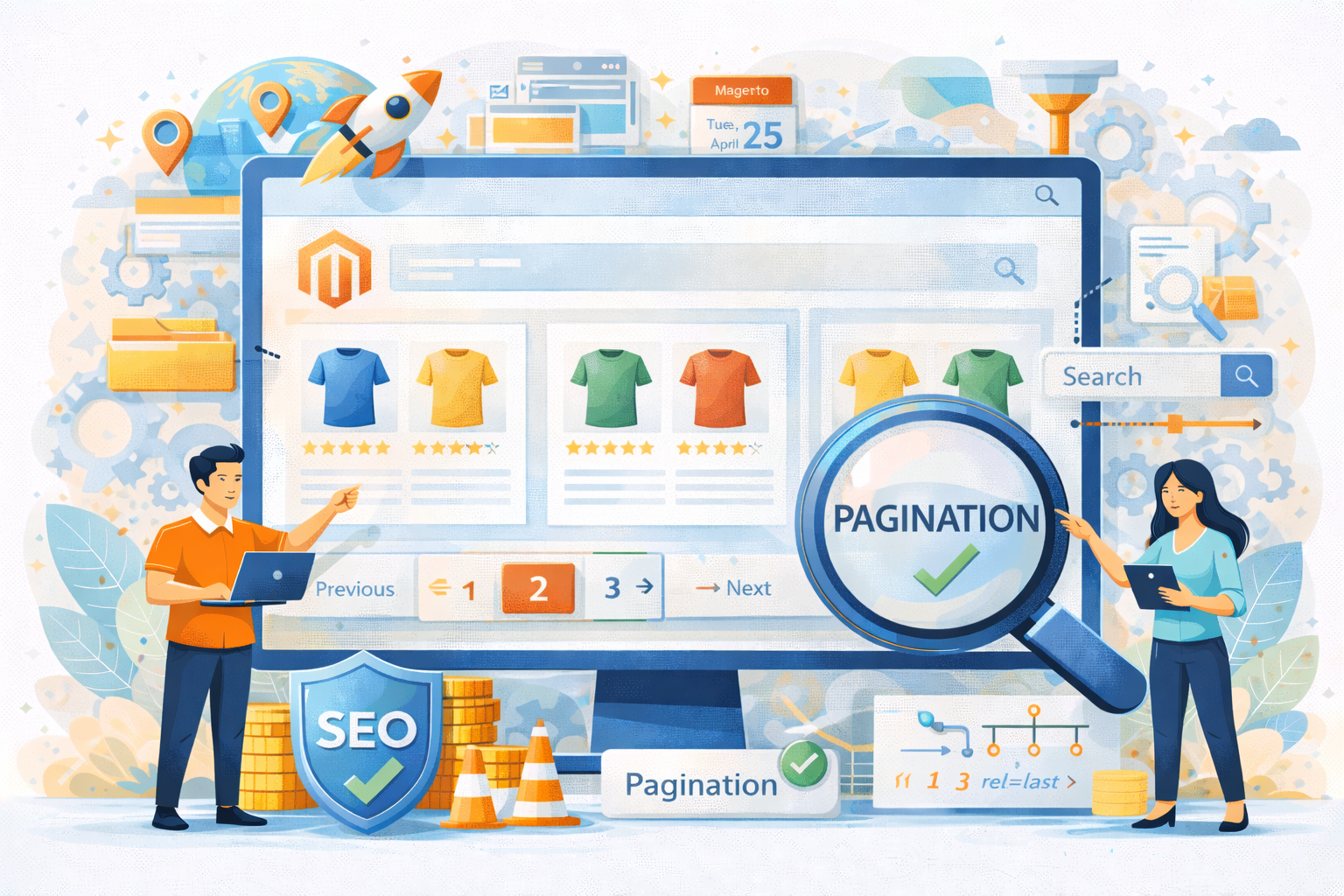
If your Magento store has a large number of products, displaying them all on a single page can overwhelm customers and slow down your website. This is where pagination comes in. Pagination divides your product listings into multiple pages, making it easier for shoppers to browse, find what they need, and enjoy a smoother shopping experience.
For store owners, understanding and configuring pagination in Magento 2 is essential. The right settings not only improve user experience but also help you manage your product catalog efficiently.
In this guide, we’ll walk you through everything you need to know about Magento pagination—from what it is and how it works, to step-by-step instructions for configuring it in the backend, best practices, and solutions to common issues. By the end, you’ll be able to set up pagination that keeps your store organized and your customers happy.
Nội dung bài viết
What Is Pagination in Magento?
Pagination in Magento is a feature that divides product listings on category pages, search results, or other product grids into multiple smaller pages, instead of displaying all products at once. In other words, if your store has hundreds of products, Magento won’t load them all on a single page but splits them into pages with a limited number of products per page, which you can configure in the backend.
The main purpose of pagination is to improve the customer experience and make product management easier:
- Better customer experience: Customers can browse products without being overwhelmed, and pages load faster, making it easier for them to find what they need.
- More organized product management: Pagination lets you control how many products appear per page, making the product display clearer and easier to manage.
In short, pagination is an essential part of Magento to ensure that your store is user-friendly for shoppers and easy to manage for store owners.

How Magento Handles Product Pages
Magento automatically organizes products on category pages and search results pages to make browsing easier for customers. By default, it does not display all products on a single page; instead, it shows a limited number of products per page, which helps the website load faster and improves the overall shopping experience.
Default Number of Products Displayed
On category or search pages, Magento sets a default number of products to display per page. This number can vary depending on the theme or configuration, but typically it is around 12, 16, or 20 products per page. Customers can navigate through multiple pages to see the rest of the products.
Magento provides built-in navigation controls so customers can move easily between pages:
- Next/Previous Buttons: Allow customers to move to the next page or go back to the previous page.
- Page Numbers: Show clickable page numbers so customers can jump directly to a specific page.
These controls make it simple for shoppers to browse your product catalog without feeling overwhelmed and help ensure that your store looks organized and professional.
By understanding how Magento handles product pages, store owners can better configure pagination to match their store’s size and improve the shopping experience.
How to Configure Pagination in Magento 2 Admin
Magento makes it easy for store owners to control how many products appear on each page and how pagination is displayed. You can do this entirely from the backend without any coding.
Change Products Per Page
To set how many products are displayed on each category or search page:
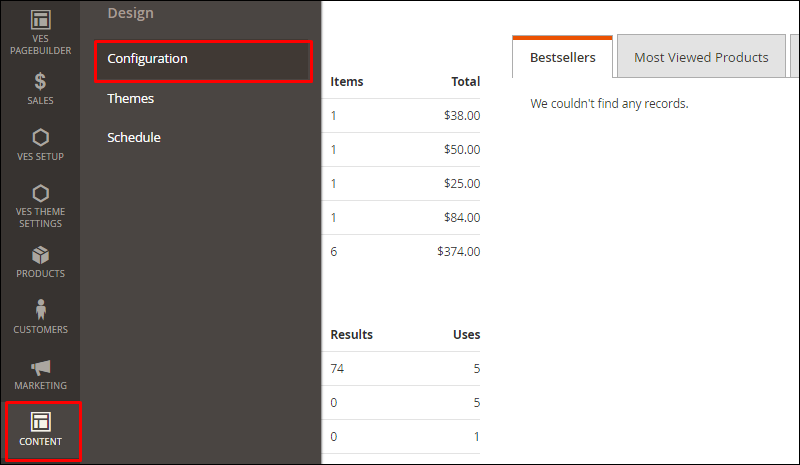
- Go to Stores → Configuration in your Magento admin panel.
- Under Catalog, click Catalog again, then open the Storefront section.
- Find the Products per Page on Grid Allowed Values field. Here, you can enter the numbers customers can choose from (e.g., 12, 24, 36).
- In the Products per Page on Grid Default Value field, select the default number of products per page (e.g., 12).
- Click Save Config to apply your changes.
This setting ensures that your product pages display a manageable number of products and gives customers options for adjusting the page size if needed.
Enable or Disable Pagination Controls
Magento also allows you to control how page navigation is displayed:
- Still in Stores → Configuration → Catalog → Catalog → Storefront, locate the Pagination Controls settings.
- Here you can enable or disable Next/Previous buttons and Page numbers.
- Save your changes to update the frontend display.
By configuring these settings, you can make it easier for customers to browse your products and improve their overall shopping experience.
Best Practices for Magento Pagination Settings
Setting up pagination correctly can significantly improve the shopping experience for your customers and make your store easier to manage. Here are some recommended practices for Magento store owners:
Recommended Number of Products Per Page
- Keep it manageable: Displaying 12–20 products per page is usually ideal. Too many products can slow down page loading, while too few can make browsing tedious.
- Consider your product type: If your store sells items that are visually detailed (like fashion or electronics), showing fewer products per page helps customers focus on each item.
- Provide options: Allow customers to select how many products they want to see per page (e.g., 12, 24, 36). This flexibility improves user experience.
SEO Considerations for Paginated Pages
Proper SEO implementation ensures that all products and content are discoverable without creating duplicate content issues.
- Use unique, SEO-friendly URLs for each paginated page, such as yourstore.com. When pagination is combined with layered navigation (filters like price, color, brand), SEO complexity increases significantly, requiring careful control of URL parameters, canonicals, and internal links. Following Magento SEO best practices for layered navigation helps ensure paginated and filtered pages remain crawlable without causing duplicate content or index bloat.
- Implement self-referencing canonical tags: Each paginated page should have a <link rel=”canonical”> tag pointing to its own specific URL. This prevents search engines from treating subsequent pages as duplicates of the first page.
- Link pages sequentially using standard <a href> tags so that search engine crawlers can find all subsequent pages.
- Avoid noindex or blocking paginated URLs in robots.txt because you want search engines to crawl and index the deeper pages of your content. This is especially important for stores with mixed product types, where configurable and simple products appear across multiple paginated pages. Understanding how product types affect indexing and duplicate content helps paginated listings support stronger SEO performance.
- Note on rel=next/prev: Google officially deprecated its use of rel=”next” and rel=”prev” tags as an indexing signal in 2019. The current best practice is to use self-referencing canonicals and clear internal linking.
Tip for store owners: Pagination affects your store’s SEO performance because properly indexed paginated pages help search engines find and rank more of your products, while poorly handled pagination can dilute SEO signals or leave deeper pages unindexed. To make SEO easier and more effective, consider using a Magento 2 SEO extension by BSS Commerce, which helps you generate SEO‑friendly URLs, manage canonical tags, and improve overall crawlability across paginated and other product pages. Check it out here: https://bsscommerce.com/magento-2-seo-extension.html
UX Tips for Pagination
- Keep navigation clear: Make sure the next/previous buttons and page numbers are easy to see and click.
- Consistency is key: Use the same pagination layout across category pages and search results so customers know how to navigate.
- Avoid overwhelming customers: Don’t display too many products per page or too many page numbers at once; this can make browsing confusing.
By following these best practices, you can ensure that your store’s pagination is both user-friendly for shoppers and easy to manage for you.
Mobile-Responsive Pagination Design
With a majority of web traffic coming from mobile devices, a touch-friendly design is non-negotiable.
- Ensure large, tappable buttons with a minimum target size of 44×44 pixels to prevent accidental clicks.
- Truncate page links aggressively on small screens to avoid clutter. You can show just the “Previous”, current page indicator (e.g., “Page 2 of 50”), and “Next” buttons, using ellipses (…) to indicate skipped numbers.
- Use clear, descriptive labels like “Previous Page” and “Next Page” instead of just arrows for better accessibility and clarity, especially for screen readers.
- Highlight the current page distinctly using color, bold text, or a unique background so users always know their position.
- Maintain consistent placement, typically at the bottom of the content, so users intuitively know where to find navigation controls.
Common Pagination Issues and How to Fix Them
Even with Magento’s built-in pagination features, store owners may sometimes encounter issues. Here are the most common problems and simple ways to fix them without touching any code.
Pagination Not Showing Correctly
Sometimes, pagination controls (next/previous buttons or page numbers) may not appear on category or search pages. This can happen if:
- The number of products on the page is less than the default products per page.
- There’s a caching issue preventing updates from appearing.
How to fix it:
- Check products per page: Make sure the default number of products per page is set correctly in Stores → Configuration → Catalog → Catalog → Storefront → Products per Page on Grid Default Value.
- Clear cache: Go to System → Cache Management and refresh the cache to ensure your changes are applied.
- Verify category settings: Make sure the category has enough products to require multiple pages.
Incorrect Number of Products Displayed
Sometimes, the number of products shown on a page may not match the configured default or allowed values. This can happen due to:
- Theme settings overriding Magento default configuration.
- Conflicts with extensions that affect product listing or pagination.
How to fix it:
- Verify backend settings: Ensure the allowed values and default value are correct under Stores → Configuration → Catalog → Catalog → Storefront.
- Check your theme: Some Magento themes include custom pagination settings. Review your theme’s configuration or documentation.
- Disable conflicting extensions: Temporarily disable any third-party modules that modify product listing to see if the issue resolves.
By addressing these common issues, you can make sure your pagination works properly, improving both the shopping experience for your customers and the management of your store.
Conclusion
Mastering Magento pagination in Magento 2 is essential for delivering a fast, user-friendly, and search-optimized storefront. By configuring default limits, customizing layouts, and implementing pagination in custom collections, developers can enhance both performance and usability. Following proven UX and SEO practices ensures that Magento pagination remains efficient, scalable, and aligned with modern eCommerce standards.