Search engine optimization for Magento 2 is a double-edged sword. While the platform is incredibly powerful, its dynamic nature creates a complex web of URLs that can confuse search engine crawlers. If Google’s “spiders” get lost in your site’s architecture, your crawl budget is wasted, and your high-priority products may never be indexed.
This comprehensive guide breaks down the most frequent Magento 2 crawl problems and provides technical solutions to ensure your store is lean, fast, and easy for bots to navigate.
Nội dung bài viết
- 1 Robots.txt Blocking Important Pages
- 2 Sitemap Problems: Missing, Large, or Corrupt
- 3 Duplicate Content and URL Proliferation
- 4 Layered Navigation and Faceted URL Indexing
- 5 Noindex Tags Where Indexing is Needed
- 6 Slow Site Performance and Crawl Budget Waste
- 7 Wrong Redirects and 404 Errors
- 8 Multistore and Store View Confusion
- 9 Summary Technical Checklist
Robots.txt Blocking Important Pages
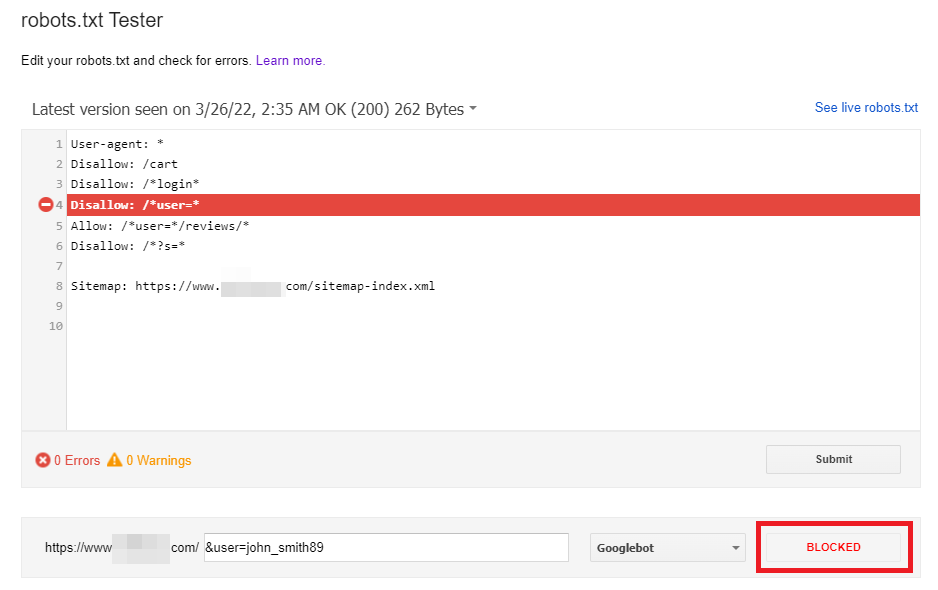
The robots.txt file is the gatekeeper of your website. It is a simple text file that tells crawlers which paths they should and should not explore. In many Magento 2 installations, the default settings are either too restrictive—blocking pages you want to rank—or too permissive, allowing bots to crawl internal system files.
Why It Happens
Magento developers often use a “disallow all” rule during the staging phase to prevent Google from indexing a site under construction. If these rules aren’t updated upon launch, your entire site could be invisible to search engines. Alternatively, default Magento rules might block the /media/ folder, which can prevent Google from “seeing” your product images.
How to Fix: Instead of using a generic file, your Magento 2 robots.txt should be surgical. You want to block the “noise” while keeping the “signal” clear.
- Audit Your File: Open yourstore.com/robots.txt. Look for Disallow: /. This stops all crawling.
- Navigate to Content > Design > Configuration.
- Edit your Global or Main Website record.
- Expand Search Engine Robots.
- Set Default Robots to INDEX, FOLLOW.
- Edit custom instructions: Ensure your file allows access to your theme’s CSS and JS files so Google can render the page correctly. Use the following optimized template:
# Block configuration and system folders
Disallow: /app/
Disallow: /bin/
Disallow: /dev/
Disallow: /lib/
Disallow: /phpserver/
Disallow: /pub/
Disallow: /setup/
Disallow: /update/
Disallow: /var/
# Block checkout and customer accounts
Disallow: /checkout/
Disallow: /customer/
Disallow: /customer/account/
Disallow: /customer/section/load/
# Block search and filters (Very Important!)
Disallow: /catalogsearch/
Disallow: /search/
Disallow: /ajax/
# Allow Google to see your assets (CSS/JS)
Allow: /pub/static/
Allow: /pub/media/
Magento 2 does not support setting Robots Meta Tags for individual pages by default. This limits your ability to control which specific pages should be indexed or excluded. To solve this, you should use a Magento 2 SEO module that allows you to control indexing with Robots Meta Tags on a per-page level.
Sitemap Problems: Missing, Large, or Corrupt
An XML sitemap does more than list URLs for search engines. In Magento 2, sitemap accuracy depends heavily on how products, categories, and CMS pages are indexed internally. If indexers or cron jobs fail, outdated or missing URLs can appear in the sitemap, directly affecting which pages search engines are able to discover and index.
Common Pitfalls
- Size Constraints: Google has a limit of 50,000 URLs per sitemap file. Large Magento stores can easily exceed this.
- Inclusion of Noindex Pages: If your sitemap includes pages that have a noindex tag, it sends conflicting signals to Google, causing the bot to slow down its crawling of your site.
- Outdated URLs: If the sitemap isn’t set to regenerate automatically, it may contain 404 links.
How to Fix
1. Automate Generation: Go to Admin → Marketing → SEO & Search → XML Sitemap. Set the Generation Settings to “Enabled” with a “Daily” frequency.
- Split sitemap: If you have more than 50,000 products, you must enable sitemap splitting.
- Go to Stores > Configuration > Catalog > XML Sitemap.
- Under Sitemap File Limits, set Maximum Number of URLs Per File to 50000.
- Set Maximum File Size to 10485760 (10MB) to ensure Google doesn’t time out while reading it.
2. Submit to Search Console: Don’t wait for Google to find it. Manually enter your sitemap URL into the “Sitemaps” section of Google Search Console.
Note: For Submission Errors: If you generate sitemaps via cron, ensure your cron jobs are running. If your cron is broken, your sitemap will be outdated, leading to 404 errors in Google Search Console. Run bin/magento cron:run from your CLI twice to force a refresh and check for errors.
Duplicate Content and URL Proliferation
Magento 2 is notorious for creating multiple URLs for a single product. For example, a “Blue Suede Shoe” might be accessible via:
- store.com/blue-suede-shoe.html
- store.com/shoes/blue-suede-shoe.html
- store.com/mens/shoes/blue-suede-shoe.html
The Impact
Magento 2 often generates multiple URLs for the same product due to its category-based structure. While this is harmless for users, it creates duplicate content signals for search engines.
When identical content exists across multiple URLs, Google must decide which version should be indexed and ranked. Without clear signals, crawl budget is wasted, link equity is diluted, and the wrong URL may appear in search results.
How to Fix
The solution is to enable Canonical Tags. This tells Google, “Even if you found me at three different URLs, this specific one is the original.”
- Go to Admin → Stores → Configuration → Catalog → Catalog.
- Under Search Engine Optimization, find Use Canonical Link Meta Tag for Categories and set it to Yes.
- Set Use Canonical Link Meta Tag for Products to Yes.
- Pro Tip: Set your product canonicals to use the “Base” path (the shortest URL) to keep things clean.
Layered navigation (filters for size, color, price) is a core feature of Magento 2. However, it can create an infinite number of URL combinations. If a bot follows every filter link, it enters a “crawl trap.”

The Problem
URLs like category.html?color=45&price=100-200&size=15 are dynamically generated and provide no unique SEO value. If Google crawls thousands of these, it will run out of crawl budget before it reaches your actual product pages.
How to Fix
- AJAX Navigation: Use an SEO-friendly layered navigation extension that uses AJAX to load filters without changing the URL for the crawler.
- Noindex/Nofollow: Ensure that filter links are set to rel=”nofollow”.
- GSC Parameter Tool: In Google Search Console, use the URL Parameters tool to flag parameters like color, price, and dir as “Does not affect page content” or “Representative URL.”
Noindex Tags Where Indexing is Needed
“Noindex” is a directive that tells a bot, “You can look at this page, but don’t show it in search results.” While useful for your “Privacy Policy” or “Thank You” pages, it is often accidentally applied to categories or products during bulk imports or site updates.
How to Check
You can use a browser extension like “SEO Quake” or “MozBar” to quickly check if a page is set to noindex. Alternatively, look at the HTML source code for: <meta name=”robots” content=”noindex”>.
How to Fix
- Category Level: Check Catalog → Categories → [Select Category] → Search Engine Optimization. Ensure the “Custom Robots Meta Tag” is not accidentally set to “Noindex.”
- CMS Level: Check Content → Pages. Under the Design tab for each page, check the “Layout XML” or “Custom Robots” settings.
Slow Site Performance and Crawl Budget Waste
Crawl budget is effectively a “time limit.” If your server takes 5 seconds to respond to a request, Google will crawl significantly fewer pages than if your server responds in 200ms. Magento 2 is resource-heavy and requires specific optimization to be “crawler-friendly.”
Performance Fixes
- Full Page Cache (FPC): Always ensure FPC is enabled in System → Cache Management.
- Varnish Cache: Standard built-in caching is okay, but Varnish is a high-performance HTTP accelerator designed for busy stores.
- Image Optimization: Large, uncompressed images are the #1 cause of slow load times. Use tools to compress images and serve them in WebP format.
- Minification: In Stores → Configuration → Advanced → Developer, enable minification for JavaScript and CSS files to reduce the total page size.
Wrong Redirects and 404 Errors
When you delete a product or change a category name, the old URL becomes a 404 (Not Found) error. If a crawler hits too many 404s, it flags the site as low quality and reduces its crawl frequency.
How to fix
- URL Rewrites: Magento has a built-in tool for this. Go to Marketing → SEO & Search → URL Rewrites.
- Automatic Redirects: Ensure that Create Permanent Redirect for URLs if URL Key Changed is enabled in your configuration.
- 301 vs 302: Always use 301 (Permanent) redirects for SEO. 302 redirects are temporary and do not pass “link juice” to the new page.
Multistore and Store View Confusion
If you have a “US Store” and a “UK Store,” they likely share much of the same content. Without proper technical markup, Google may see this as duplicate content across domains.
How to Fix
- Hreflang Tags: These tags tell Google exactly which version of the site belongs to which region. Example: <link rel=”alternate” hreflang=”en-gb” href=”https://site.co.uk/” />
- Separate Sitemaps: Ensure each store view has its own unique XML sitemap generated and submitted to the corresponding regional Search Console account.
- Base URLs: Verify in Stores → Configuration → General → Web that each store view has its own distinct Base URL and that they are not overlapping.
Summary Technical Checklist
Before ending your SEO audit, run through this quick checklist to ensure your Magento 2 store is ready for the bots:
| Issue | Resolution Status |
| Sitemap | Generated daily and submitted to GSC |
| Robots.txt | Verified not blocking /catalog/ or /media/ |
| Canonicals | Enabled for both Products and Categories |
| Performance | Production Mode active; Varnish/Redis enabled |
| HTTPS | 301 Redirects from HTTP to HTTPS active |
| URL Parameters | Filtered URLs blocked via Robots.txt or GSC |
| 404 Errors | All broken links redirected to active categories |
By addressing these common Magento 2 crawl issues, you ensure that search engines spend their time on what matters most: your products. This leads to faster indexing, higher rankings, and ultimately, more sales.