In eCommerce, visuals are everything, and for Magento store owners, images play a crucial role in attracting and converting visitors. However, large, unoptimized images can slow down your site, negatively affect user experience, and reduce search engine rankings. Optimizing Magento images for SEO is not just about file size—it also involves proper naming, alt text, structured data, and format choices. Implementing best practices for Magento images ensures faster page load times, improved accessibility, and higher visibility in search results, ultimately driving more traffic and boosting conversions.
Nội dung bài viết
- 1 Choose the Right Image Formats for Faster Magento Pages
- 2 Name Image Files Strategically to Boost SEO
- 3 Optimize ALT Tags to Improve Search Visibility and Accessibility
- 4 Maintain High Image Quality Without Slowing Your Store
- 5 Speed Up Your Magento Site by Optimizing Image Loading
- 6 Create an Image Sitemap to Help Google Find Your Visuals
- 7 Conclusion
Choose the Right Image Formats for Faster Magento Pages
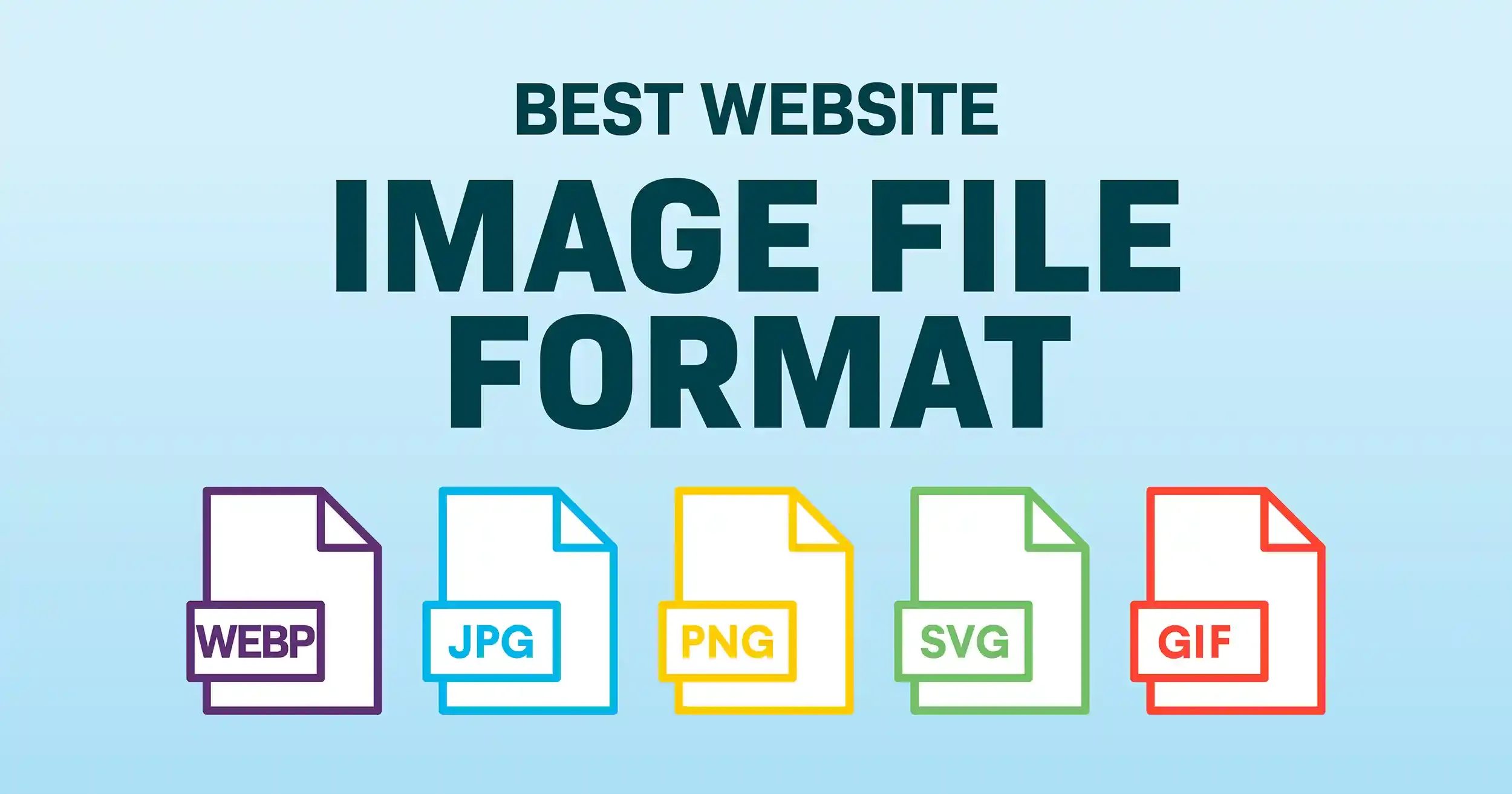
Why it matters: Images often account for over 60% of a page’s total weight. Using outdated formats like standard JPEG or PNG results in “bloated” pages that fail Google’s Core Web Vitals tests—specifically the Largest Contentful Paint (LCP). Google explicitly rewards sites that use “next-gen” formats because they provide superior compression, allowing pages to render faster on mobile devices and slow networks, which directly boosts your SEO rankings.
Strategy:
- WebP as the Standard: Make WebP your default format. It is roughly 25-35% smaller than JPEG at the same visual quality.
- AVIF for the Future: If your store targets tech-savvy users, consider AVIF, which offers even better compression than WebP (though browser support is slightly more limited).
- SVG for UI Elements: Use Scalable Vector Graphics (SVG) for logos, icons, and buttons. They are resolution-independent (won’t look blurry on Retina screens) and have a tiny file size.
- PNG for Transparency Only: Only use PNG-24 when you absolutely need a transparent background (e.g., product cutouts). For everything else, convert to WebP.
How to configure in Magento:
- Native WebP Support (Magento 2.4.4 and newer): Modern Magento versions can technically serve WebP, but they often require manual configuration.
- Ensure your server has the GD or ImageMagick library with WebP support enabled.
- Check your etc/view.xml to ensure the system is processing these formats correctly during the resize command.
- Using a WebP Image Extension: For most merchants, the native support is too basic. A dedicated WebP Extension like BSS Commerce is highly recommended because it offers:
- Automated Conversion: Automatically converts all existing JPEGs/PNGs to WebP upon page load or via a cron job.
- Browser Fallback: This is critical. If a user visits your store using a very old browser that doesn’t support WebP, the extension will automatically serve the original JPEG so the image doesn’t appear “broken.”
- Quality Control: Allows you to set a global quality percentage (e.g., 80%) for all converted WebP images.
- Configuration Path: Once an extension is installed, you will typically find settings under: Stores > Configuration > [Extension Name] > WebP Settings.
- Enable “Convert Images on the Fly.”
- Enable “Lazy Load WebP” to combine format optimization with loading speed.
Name Image Files Strategically to Boost SEO
Why it matters:
Google’s crawlers cannot “see” an image like a human; they rely on the filename to understand the context. A file named red-leather-mens-boots.jpg provides much more SEO value than DSC1002.jpg.
Strategy:
- Use descriptive, keyword-rich names that reflect the product.
- Separate words with hyphens (-) instead of underscores (_), as search engines treat hyphens as spaces.
- Avoid using generic stop words (e.g., “the”, “a”, “of”).
How to configure in Magento:
- Pre-upload Optimization: Establish a workflow where images are renamed on a local machine before being uploaded to the Magento Media Gallery.
- Mass Renaming Tools: For existing catalogs, use a Magento extension that allows for the bulk renaming of product images based on product attributes (like Product Name + SKU).
Optimize ALT Tags to Improve Search Visibility and Accessibility
Why it matters:
Alt text (Alternative Text) in Magento stores is essential for web accessibility (screen readers) and is a critical factor for appearing in Google Image Search. It provides a textual description of the image when it fails to load.
Strategy:
- Write concise, descriptive text that includes the primary keyword naturally.
- Do not “stuff” keywords, as this can lead to search penalties.
- Ensure every product, category, and banner image has a unique Alt tag.
How to configure in Magento:
- Manual Entry: On the Product Edit page, go to the Images and Videos section, click an image, and fill in the Alt Text field.
- Magento SEO Extension: To save time, use a Magento SEO Extension, like one from BSS Commerce, to create templates. For example, you can set a rule to automatically generate Alt tags using the formula: [Product Name] – [Color] – [Manufacturer].
Maintain High Image Quality Without Slowing Your Store
Why it matters: In E-commerce, your images are your primary sales tool. High-resolution visuals build trust and reduce product returns by showing accurate details. However, “raw” high-res files (often 5MB+) kill mobile performance. If a page takes longer than 3 seconds to load, 40% of users bounce. The goal is Perceptual Quality: optimizing the file so it remains visually identical to the original while stripping away data the human eye cannot perceive.
Strategy:
- Lossy vs. Lossless Compression: Use Lossy compression for product photos (stripping unnecessary data for 60-80% size reduction) and Lossless for graphics with text or solid colors.
- Source Image Discipline: Avoid uploading 5000px images. Aim for a “Master” upload size of 1200px to 2000px, which is the sweet spot for zoom features without being excessive.
- Aspect Ratio Consistency: Stick to a consistent ratio (e.g., 1:1 or 4:3) across all products. This prevents the browser from recalculating the layout as images load, which improves your Cumulative Layout Shift (CLS) score.
How to configure in Magento:
- Refining view.xml: Magento uses the etc/view.xml file in your theme to automate image resizing. Instead of letting the browser scale images (which is slow), define exact dimensions for every use case:
- Locate <image id=”category_page_grid” …> or <image id=”product_page_image_medium” …>.
- Set the width and height to match your frontend design exactly.
- Run bin/magento catalog:image:resize to regenerate the cache.
- Adjusting Magento’s Internal Compression: By default, Magento compresses JPEGs at 75% quality. You can adjust this globally:
- Go to Stores > Configuration > Advanced > Developer.
- Under Image Processing Settings, ensure the adapter is set to ImageMagick (it’s more efficient than GD).
- Use the command line to set the quality level: bin/magento config:set dev/image/default_quality 80.
- Server-Side Optimization: Install tools like jpegoptim or optipng on your server. You can set up a Cron Job that runs every night to scan your /pub/media/catalog/product folder and compress any new images automatically: find pub/media/catalog/product -name “*.jpg” -exec jpegoptim –strip-all –max=80 {} +
- Cloud-Based Auto-Optimization: Integrate a service like Cloudinary, Fastly IO, or TinyPNG. These tools use AI to analyze each image and apply the maximum compression possible without causing visible “pixelation” or artifacts.

Speed Up Your Magento Site by Optimizing Image Loading
Why it matters: Image loading is a “balancing act” that directly impacts your Core Web Vitals, specifically Largest Contentful Paint (LCP) and Cumulative Layout Shift (CLS). If all images load at once, the browser’s bandwidth is throttled, delaying the appearance of the main content. Conversely, if images “pop in” late without reserved space, the layout shifts, frustrating users and hurting your mobile-friendliness score in Google’s eyes.
Strategy:
- Lazy Loading: Defer loading for any image “below the fold” (not immediately visible) to save bandwidth.
- Hero Image Preloading: Do the opposite for your main product or banner image—force it to load first using fetchpriority=”high” to achieve a lightning-fast LCP.
- CDN Integration: Offload the delivery of images to global edge servers to reduce “Time to First Byte” (TTFB).
How to configure in Magento:
- Native Lazy Loading: Magento 2.4+ automatically adds loading=”lazy” to product images. To customize this or apply it to CMS blocks, you may need a Lazy Load Extension (e.g., Amasty or Magefan) which allows you to “exclude” the first 1-2 images from lazy loading so they appear instantly.
- Setting up a CDN: 1. Navigate to Stores > Configuration > General > Web. 2. Expand Base URLs and Base URLs (Secure). 3. Update the Base URL for User Media Files field with your CDN endpoint (e.g., https://cdn.yourstore.com/media/). 4. Note: Ensure your CDN (like Cloudflare or Fastly) is correctly pointed to your origin server before saving.
- Preloading Hero Images: For your most important pages, you can manually add a preload link to the <head> section via a layout XML update: <link rel=”preload” as=”image” href=”your-hero-image.webp” fetchpriority=”high”>
- Reserve Image Space: Ensure your theme (like Hyvä or Luma) has explicit width and height attributes set in the view.xml or template files to prevent CLS (layout shifts) while images are loading.
Create an Image Sitemap to Help Google Find Your Visuals
Why it matters: While search engines can find images by crawling your HTML, an Image Sitemap provides a direct roadmap for Google to discover every visual asset on your site, including those that might be hidden by JavaScript or buried in deep category levels. This significantly increases your chances of appearing in Google Image Search, which can be a major source of high-intent traffic for e-commerce.
Strategy:
- Ensure that every product image, category header, and promotional banner is indexed.
- Include specific metadata in the sitemap, such as the image title and caption, to provide additional context to search engines.
- Keep the sitemap updated automatically so that as you add new products, their images are immediately submitted for indexing.
How to configure in Magento:
- Native XML Sitemap: Navigate to Stores > Configuration > Catalog > XML Sitemap. Under the Product Options and Category Options tabs, find the “Image Lossy” or “Image Script” settings and set “Add Images to Sitemap” to All.
- Generation: Go to Marketing > SEO & Search > Sitemap to generate or refresh your .xml file.
- Advanced Optimization: If you are using a Magento SEO Extension, you can often customize which specific image roles (Base, Small, Thumbnail) are included in the sitemap to avoid indexing duplicate versions of the same photo. This helps preserve your “crawl budget” for the most important high-quality images.
Conclusion
Optimizing images in Magento is a critical step toward creating a fast, user-friendly, and SEO-friendly online store. By reducing file sizes, using descriptive filenames, adding alt text, and leveraging modern image formats, Magento store owners can improve site performance and enhance search engine visibility. Applying these best practices consistently helps not only with higher rankings but also with better user engagement and conversion rates, making image optimization a simple yet powerful strategy for eCommerce success.