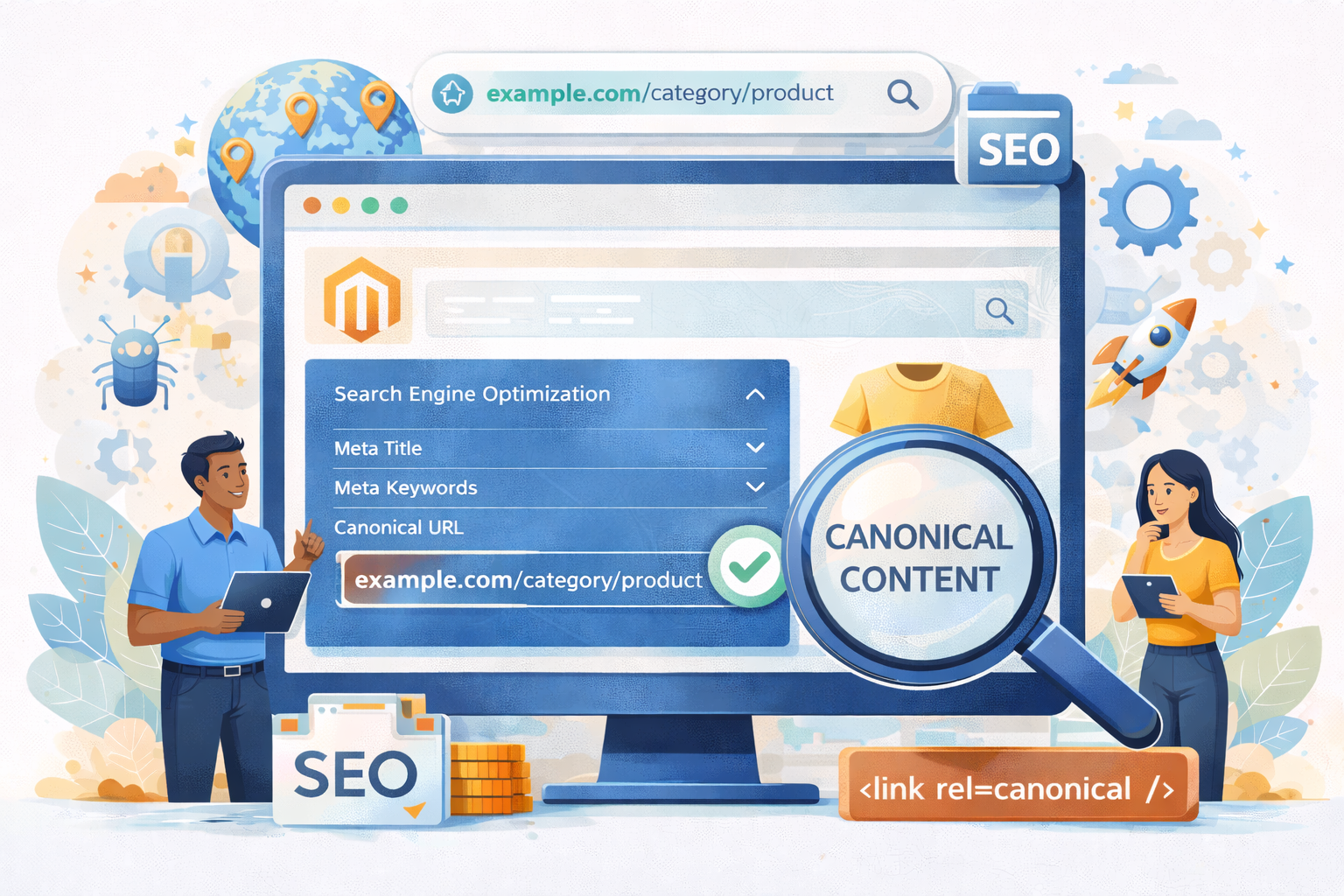
Canonical tags play a crucial role in Magento 2 SEO because they help search engines understand which version of a page should be considered the primary or “original” version. When your store has multiple URLs that display the same or very similar content, search engines may treat them as duplicates. This can dilute ranking signals, waste crawl budget, and negatively affect organic performance.
Magento 2 stores often face duplicate content issues due to layered navigation, pagination, product variations, and multi-store setups. Fortunately, Magento 2 provides several ways to implement canonical tags to ensure search engines focus on the correct pages. In this guide, you will learn why canonical tags matter, the different ways to add them in Magento 2, how to verify your implementation, and best practices to avoid SEO issues.
Nội dung bài viết
Why Canonical Tags Are Important For SEO In Magento 2
Canonical tags are essential in Magento 2 because they help you control duplicate content caused by the platform’s powerful but complex catalog and navigation structure. Below are the most common Magento features that unintentionally create duplicate content and why canonical tags are needed.
Layered Navigation (Filter URLs)
Magento layered navigation allows users to filter products by attributes such as color, size, price, and other custom filters. Each filter generates a new URL with parameters. For example:
- /women/tops.html
- /women/tops.html?color=red
- /women/tops.html?color=red&size=M
Even though these URLs technically differ, they usually display almost the same core content. Without canonical tags, search engines may index them separately, causing severe duplicate content and keyword cannibalization in Magento stores. Canonical tags help point all these variations back to the main category or product page to consolidate ranking signals.
Pagination Pages
Magento category pages often use pagination to display large product catalogs, such as:
- /women/tops.html?p=1
- /women/tops.html?p=2
- /women/tops.html?p=3
While each page displays different portions of the same product list, Google may view them as duplicate or near-duplicate pages. Canonical tags help ensure search engines understand which page should carry the main ranking authority, preventing SEO dilution.
Sorting Parameters And URL Variations
Magento also allows users to sort product lists by price, popularity, name, or relevance. These sorting actions generate new parameter-based URLs like:
- /women/tops.html?product_list_order=price
- /women/tops.html?product_list_order=name
These pages provide the same content in a different order, which still counts as duplicate content in the eyes of search engines. Canonical tags help Magento clarify that the primary canonical version is the clean, parameter-free page.
Multi-Store And Multi-Language Setups
One of Magento’s biggest strengths is its ability to run multiple stores, languages, and domains from a single installation. However, this also naturally increases the risk of duplicate content. For example, you may have identical content available on:
- example.com/store1/product.html
- example.com/store2/product.html
- Or even across different domains
Without canonical tags, search engines may struggle to determine which URL should rank, leading to index bloat and ranking instability. Canonical tags ensure the correct store version is treated as the primary page while still supporting multilingual and multi-domain strategies.
Methods To Add Canonical Tags In Magento 2
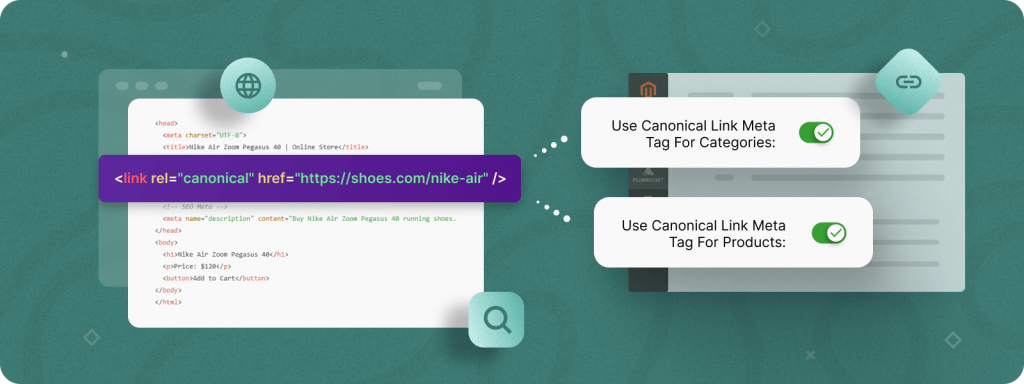
There are two main ways to add canonical tags in Magento 2. You can either use Magento’s built-in SEO settings or configure them through an SEO extension if you need more advanced control. This section will walk you through both methods step by step so you can choose the best approach for your store.
Method 1: Add Canonical Tags In Magento 2 Using Default Settings
Magento 2 already provides built-in options to add canonical tags for category and product pages. These options are highly recommended to enable first because they solve most duplicate content issues without requiring extra modules or customization.
- Canonical Tags For Category Pages
Category pages often generate multiple duplicate URLs due to layered navigation and sorting parameters. Enabling canonical tags helps Magento point all variations back to the main clean category URL.
To enable canonical tags for categories:
- Go to Stores → Configuration.
- Select Catalog.
- Open the Catalog section.
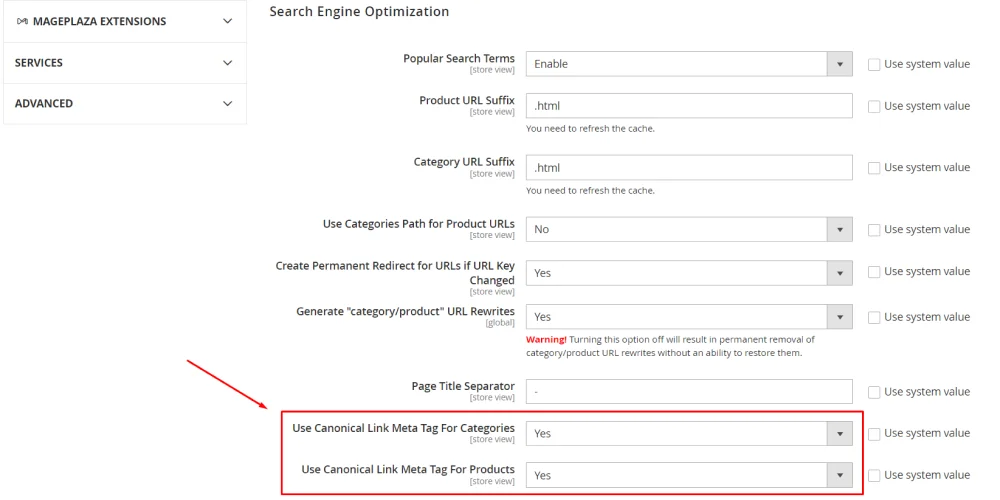
- Scroll to Search Engine Optimization.
- Set Use Canonical Link Meta Tag For Categories to Yes.
- Save configuration and clear cache.
Magento will now automatically add a canonical tag to your category pages. This ensures that filter URLs and sorting URLs do not compete in search results.
Canonical Tags For Product Pages
Products in Magento 2 can easily have multiple URLs if they belong to multiple categories, use different URL keys, or are accessed through parameters. Canonical tags ensure Google understands the main product URL.
To enable canonical tags for product pages:
- Go to Stores → Configuration.
- Select Catalog.
- Open the Catalog section.
- Go to Search Engine Optimization.
- Set Use Canonical Link Meta Tag For Products to Yes.
- Save configuration and flush cache.
Once enabled, Magento automatically adds canonical tags to product pages and points them to their primary product URL. This helps consolidate ranking signals and prevents duplicate product content.
Canonical Tags For CMS Pages
Unlike product and category pages, Magento 2 does not automatically add canonical tags to CMS pages. However, CMS pages like Home, About Us, landing pages, and promotional pages can also cause duplicate content problems across different store views or URLs.
You can manually add canonical tags to CMS pages in two ways:
Option 1: Add canonical via page settings
- Go to Content → Pages.
- Edit the CMS page you want.
- Open the Search Engine Optimization tab.
- Add canonical code inside the Meta Data or Page Layout Update XML section.
- Save and clear cache.
Option 2: Add canonical via layout XML update
If you need more control, you can add canonical tags using a layout XML update in the CMS page design section. This method is usually handled by developers but gives more flexibility when needed.
Method 2: Add Canonical Tags In Magento 2 Using SEO Extension
While Magento’s default settings work well for most stores, there are still many situations where you may need more advanced canonical management. This is where SEO extensions become helpful.
You should consider using an SEO extension for Magento 2 if you need:
- Canonical tags for layered navigation and filtered URLs.
- Canonical tags for pagination structure.
- Cross-domain canonical tags.
- Store-view specific canonical control.
- More flexible rules for complex catalogs.
A good SEO extension should allow you to:
- Automatically generate canonical tags for all important page types.
- Set custom canonical URLs for specific pages or conditions.
- Manage canonical behavior in multilingual or multi-store environments.
- Avoid conflicts with hreflang and structured data.
The general setup workflow usually includes:
- Install and enable the SEO extension.
- Go to the SEO configuration section in your admin panel.
- Enable canonical tags and define your preferred rules.
- Apply settings and clear cache.
- Test canonical implementation to ensure everything works correctly.
Using an extension is especially beneficial for larger Magento stores, stores with heavy filtering usage, or businesses targeting multiple markets.
How To Verify Implementation
After adding canonical tags in Magento 2, the next important step is to verify whether they are working correctly. Proper verification ensures that search engines can correctly identify your preferred URL version and that no incorrect or conflicting canonical tags exist. Below are the most reliable methods to check your canonical implementation.
Method 1: Check Canonical Tags Directly In Page Source
The simplest and most accurate way to verify canonical tags is to inspect them directly in the page HTML. This helps you confirm that the canonical tag is actually present, correctly formatted, and pointing to the right URL.
Steps to check:
- Open the page you want to verify (category, product, or CMS page).
- Right-click anywhere on the page and select View Page Source (or View Source depending on your browser).
- Use the search function (Ctrl + F or Cmd + F).
- Type canonical.
- Look for the canonical code in the <head> section:
<link rel=”canonical” href=”https://yourdomain.com/sample-page.html” />
What to check carefully:
- The canonical URL points to the correct main version of the page.
- It uses the correct protocol (https instead of http).
- It does not include unnecessary parameters like ?p=2, ?color=red, etc.
If the canonical tag appears multiple times or is missing, it indicates a configuration or extension conflict that needs fixing.
Method 2: Verify Using Browser Inspect Tool
If you prefer a quicker method without opening the full page source, you can also check canonical tags via browser developer tools.
Steps:
- Open the page.
- Right-click and select Inspect.
- Go to the Elements tab.
- Search for canonical.
This provides real-time confirmation that the canonical tag is being rendered correctly.
Method 3: Use Google Search Console To Validate
Google Search Console is one of the most reliable tools to verify whether Google recognizes your canonical URL correctly.
Steps to check using URL Inspection Tool:
- Open Google Search Console.
- Enter the page URL in URL Inspection.
- Scroll to the Indexing section.
- Check the Canonical result.
You will see two important lines:
- User-declared canonical → the canonical URL you set in Magento.
- Google-selected canonical → the URL Google decides to treat as canonical.
If both match, your canonical setup is working properly.
If they differ, it means Google doesn’t trust your canonical signal, often due to duplicate content issues, internal linking, or conflicting signals.
Method 4: Validate Using SEO Tools And Crawlers
Professional SEO tools can scan your entire Magento store and detect canonical tags at scale, which is especially helpful for large stores with thousands of URLs.
Recommended tools:
- Screaming Frog SEO Spider
- Ahrefs Site Audit
- SEMrush Site Audit
What these tools help identify:
- Pages missing canonical tags
- Duplicate canonical tags
- Incorrect canonical pointing
- Canonical chains (A → B → C rather than A → B)
- Canonical pointing to non-indexable URLs
Running periodic audits ensures your canonical structure stays consistent over time, especially after major updates or site changes.
How Long Until Canonical Changes Take Effect?
Even after implementing canonical tags correctly, changes won’t reflect instantly in Google search results. In most cases, it may take:
- A few days to a few weeks
- Depending on crawl frequency, domain authority, and page importance
You can speed up the process by:
- Requesting indexing in Google Search Console
- Updating your sitemap and resubmitting
- Ensuring strong internal linking to canonical URLs
Common Magento 2 Canonical Tags Issues And Best Practices
Even when canonical tags are configured correctly in Magento 2, it is still easy to run into technical or configuration-related problems. Understanding common issues and following best practices will help you avoid SEO risks and ensure that your canonical implementation truly supports your Magento store’s organic performance.
Common Issues With Canonical Tags In Magento 2
- Canonical Tags Missing Or Not Rendering
Sometimes canonical tags simply don’t appear on category, product, or CMS pages even after enabling them. This often happens due to:
- Incorrect Magento configuration
- Custom theme overriding the default head section
- Conflicts with third-party SEO or speed optimization plugins
- Cache not cleared after applying settings
In these cases, checking the page source and testing with developer mode or disabling conflicting modules is essential.
- Wrong Canonical URL (HTTP, WWW, Or Store View Issues)
A very common SEO issue is when the canonical tag points to a slightly different version of your URL structure such as:
- HTTP instead of HTTPS
- Non-www instead of www (or vice versa)
- Different store view or language version
- A trailing slash mismatch
These inconsistencies confuse search engines and can lead to indexing of unintended URLs. To avoid this, always ensure Magento base URLs are configured correctly and consistent across stores.
- Canonical Tags And Layered Navigation Conflicts
Layered navigation pages generate multiple filtered URLs. If your SEO extension or theme mishandles them, you may see:
- Canonical pointing to filtered URLs instead of the main category
- No canonical applied at all
- Canonical conflicting with “noindex” settings
This problem typically appears on big catalogs with heavy filtering. Proper configuration or a dedicated SEO extension is usually required to handle it correctly.
- Canonical Conflicts With hreflang Or Multistore
In multilingual or multi-store environments, you may use hreflang tags to target different regions or languages. However, mistakes happen when:
- Canonical points to one language but hreflang references another
- Canonical points to a different store entirely
- Multiple stores share nearly identical content without proper strategy
This leads to ranking instability or pages being incorrectly prioritized in the wrong market.
- Self-Referencing Canonical Done Incorrectly
Magento commonly uses self-referencing canonicals, and while this is generally acceptable, the problem appears when:
- Canonical references a URL with parameters
- The canonical references alternate pagination pages
- The canonical references a version of the URL not used in internal links
This weakens the canonical signal instead of strengthening it.
To understand these problems in detail and learn how to identify and fix them effectively, explore our in-depth guide on Canonical tags issues in Magento, where we break down real-world scenarios and proven solutions.
Best Practices For Canonical Tags In Magento 2
Following best practices helps ensure search engines clearly understand your preferred URLs and maintain strong ranking performance.
- Always Point Canonical To The Cleanest URL
Your canonical should always reference the main, clean, parameter-free version of the page:
- Use HTTPS
- Avoid tracking parameters
- Avoid filter parameters
- Avoid pagination variables
This ensures search engines treat the clean URL as the primary ranking target.
- Use Canonical With Other SEO Signals Consistently
Canonical alone is not enough if the rest of your SEO signals send mixed messages. Align canonical strategy with:
- Internal links
- XML sitemaps
- hreflang
- Redirect rules
- Noindex directives
When all signals point to the same preferred URL, Google is much more likely to respect your canonical selection.
- Be Careful With Pagination Canonicals
For paginated category pages, do not always force everything to canonical to page 1. In many cases, it is better to:
- Use self-referencing canonical per page
- Combine with strong internal linking
- Ensure meaningful unique content above product listings
This allows deeper pages to maintain visibility without harming SEO.
- Review Canonical Tags After Major Changes
Any time you make structural changes, you should review canonicals again. This includes:
- Theme changes
- SEO extension installations
- URL structure updates
- Store view restructuring
- Large catalog updates
Running an SEO crawl regularly helps detect issues early.
- Periodically Audit Using Search Console And Crawlers
Make canonical review part of your routine Magento SEO maintenance. Conduct periodic audits to:
- Ensure canonicals still exist
- Confirm Google respects your chosen canonical
- Detect conflicts or duplication early
This is especially important for large ecommerce stores, as small canonical mistakes can impact thousands of URLs.
Conclusion
Canonical tags play a vital role in maintaining a clean, search-friendly Magento 2 site structure. With Magento’s complex navigation, filtering, pagination, and multi-store capabilities, duplicate content issues are almost unavoidable — but canonical tags give you control over which URLs search engines should prioritize.
By enabling Magento’s default canonical settings for category and product pages, adding canonicals to important CMS pages when needed, and using SEO extensions for more advanced scenarios, you can significantly reduce duplicate content risk and consolidate ranking signals. Just as important, always remember to verify your implementation and regularly audit your site to ensure no conflicts or incorrect canonical URLs appear after updates or structural changes.
If implemented correctly, canonical tags not only protect your SEO performance but also help search engines focus on the right content, improving indexability, stability, and long-term visibility for your Magento 2 store.